Table of Contents
Introduction
If you’re a teacher, student, or even a parent trying to spice up learning time, you’ve probably heard of Gimkit. But what exactly does it mean to host gimkit? Great question!
Hosting Gimkit means you’re the game leader. You create or launch a live quiz-style game that others can join and play in real time. It’s kind of like being the DJ at a classroom party—only the party involves fun questions, brain power, and a whole lot of excitement.
Whether you’re running a science review or just want to test vocabulary skills, Gimkit’s hosting tools are easy to use and built to engage learners of all levels.
In this article, you’ll learn step-by-step how to host Gimkit, explore cool features, and discover tips that make your experience smooth and successful—even if you’re brand new to it.
Let’s dive in and turn your classroom into a game show your students will beg to play again!
What Is Gimkit and Why Do Teachers Love It?
Gimkit is an online learning platform that turns quizzes into fun games. Created by a student who wanted to make review games more exciting, Gimkit is now used in classrooms all over the world.
Instead of boring worksheets or repetitive flashcards, Gimkit adds a playful twist. Players can earn virtual cash, upgrade their powers, and battle in real time—all while learning school subjects.
When you host Gimkit, you’re in charge of the game. Students join using a game code, and then the fun begins. Best of all, the questions come from your own custom set—or you can choose from the Gimkit library.
Teachers love it because:
- It makes review time fun
- It boosts student engagement
- It can track progress and scores
- Games are easy to set up and share
Now let’s learn exactly how to host your very first game.
How to Create a Gimkit Account (If You Haven’t Yet)
Before you host Gimkit, you need an account. The good news? It’s free and really quick.
Here’s how to make one:
- Go to gimkit.com
- Click on “Sign Up”
- Choose “I’m a teacher” (or student)
- Enter your email and create a password
- Confirm your details and accept the terms
That’s it! You’re now ready to start making game sets and hosting your own Gimkit sessions.
There’s also a Pro version that offers more features. But if you’re just starting, the free version is more than enough to create and host Gimkit with real educational fun.
How to Make or Choose a Game Set in Gimkit
You can’t host Gimkit without a quiz set.
There are two simple ways to get started:
- Build your own question set
- Use one from the Gimkit library
To build your own:
- Log in to your dashboard.
- Click on “New Kit” or “Create Kit.”
- Name your kit and choose a subject.
- Add questions by typing them in. You can choose multiple-choice or text input formats.
- Save and finish.
To use an existing set:
- Go to the Discover tab.
- Type a topic or subject (e.g., “states and capitals”).
- Pick a public set and click “Use Kit.”
Once your quiz set is ready, you’re all set to host Gimkit in your classroom or online learning session.
Step-by-Step: How to Host Gimkit in Live Game Mode
Now for the fun part—hosting a Gimkit live game!
Follow these steps:
- From your dashboard, click the quiz set you want to use.
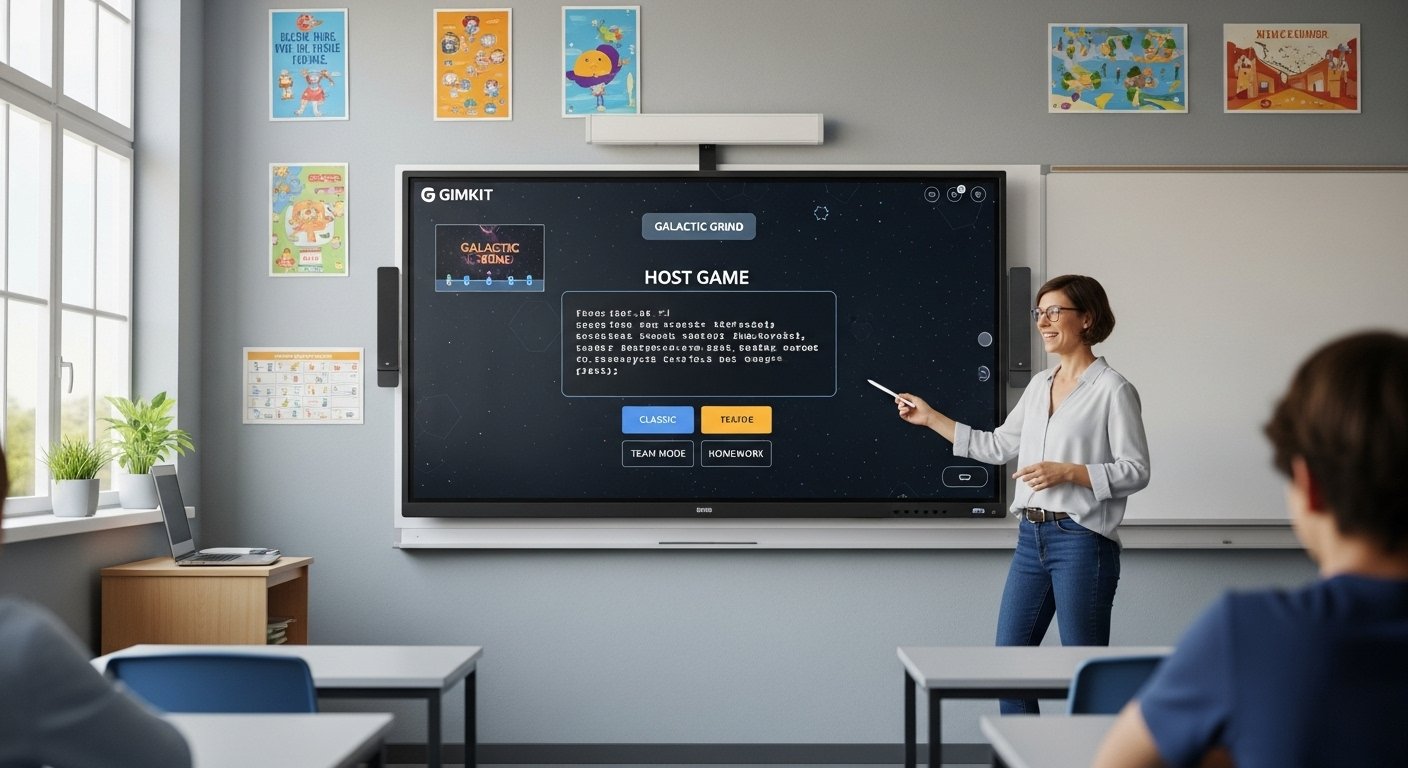
- Choose “Play Live.”
- Pick a game mode (there are many like Classic, Team Mode, or Crazy Mode).
- Set the time limit, target goals, and power-ups.
- Click “Continue” or “Host Game.”
- A game code will appear. Share this with your players so they can join.
Players just visit gimkit.com/join, type in the code, and they’re in the game lobby.
Once everyone joins, hit “Start” and let the learning begin. It’s that easy to host Gimkit and turn a regular lesson into interactive fun.
Different Game Modes You Can Use When Hosting Gimkit
When you host Gimkit, there’s more than one way to play. Gimkit offers several game modes, each with its own twist.
Here are a few of the most popular:
- Classic – Every student plays solo. Great for quick quizzes or silent review.
- Team Mode – Players are divided into color-coded teams. Perfect for group work and class discussions.
- The Floor Is Lava – A survival-style game with rising “lava” where answering questions helps players escape!
- Trust No One (Among Us-Inspired) – A mystery game where impostors are hiding among crewmates.
- Snowbrawl – Winter-themed fun with snowballs powered by correct answers.
Game modes are constantly updated by the creators, so there’s always something new. Choosing the right mode depends on your goal—whether it’s competition, collaboration, or just fun.
Try different modes each time you host Gimkit to keep learners excited and guessing.
Hosting Gimkit for Homework: The Assignments Feature
Don’t want to host a game live? No worries!
Gimkit also has an Assignments feature. This lets you assign your quiz game as homework, classwork, or remote practice.
How to use it:
- Select your quiz set.
- Choose “Assign Homework” instead of “Play Live.”
- Set start and end dates.
- Adjust settings like number of questions or time limit.
- Share the link with your students.
Students can complete it at their own pace. You still get reports on who finished and how they did.
This is perfect when you don’t have time to host Gimkit live but still want your students to learn interactively.
Tracking Progress and Scores After You Host Gimkit
One of the best features for teachers is Gimkit’s built-in progress tracking.
After you host Gimkit, go to your dashboard and click on “Reports.”
You’ll see:
- Who joined the game
- How many questions each student answered
- Right vs. wrong answers
- Which questions were tricky for the class
This makes it easy to identify what needs more review. You can use the stats to improve your next lesson—or even adjust homework based on student performance.
Every time you host, you learn more about how your class learns!
Tips to Make Games Fun When You Host Gimkit
Hosting Gimkit is easy. Making it fun takes just a little extra magic.
Try these tips:
- Add silly or themed usernames
- Use funny quiz sets (e.g., memes, cartoons, fun facts)
- Reward winners with stickers or praise
- Let students help create quiz questions
- Play mystery modes (like Trust No One) for brain breaks
- Use music and a fun countdown before you start the game
When students are smiling and learning at the same time, your Gimkit hosting session will be a hit!
Gimkit Live vs. Gimkit Ink: What’s the Difference?

You might see something called Gimkit Ink on the platform.
Here’s the difference:
- Gimkit Live is the quiz-style game where you host and play in real time or assign for later.
- Gimkit Ink is a storytelling tool for students to create digital writing projects, like slides, posters, or essays.
They work separately, but both help students learn in creative ways.
Just remember: when you want to host Gimkit, you’re using the Live feature—not Ink.
Common Problems When Hosting Gimkit (And How to Fix Them)
Sometimes, things don’t go perfectly. Here are a few quick solutions:
“Students can’t join the game.”
Check that they’re using the right game code at gimkit.com/join.
“Game is running too fast or slow.”
Adjust time settings before starting in the Game Options screen.
“I can’t find the quiz set I made.”
Check “Kits” in your dashboard or use the search bar to locate it.
“No one is answering questions.”
Maybe your mode has non-question actions (like Trust No One). Use “Classic Mode” to focus on Q&A.
With a little practice, you’ll feel confident every time you host Gimkit.
Is Gimkit Safe for Students?
Yes, Gimkit is safe for classroom use. The platform is COPPA-compliant and doesn’t collect personal data from students.
As the host, you control:
- Who joins your game
- What content is shown
- How long the game lasts
You can even mute music or kick users if needed.
Always make sure to remind students to use school-appropriate usernames and behave respectfully during games.
Keep it fun, safe, and all about the learning.
FAQs
1. Can students host their own Gimkit games?
Only teachers can fully host Gimkit with all settings and modes unlocked. Students can join games or create their own kits for classwork.
2. Is Gimkit free to use?
Yes! There’s a free version with full game access. Schools or teachers can upgrade to Pro for extras.
3. How many players can join when I host Gimkit?
Up to 60 free players can join your live game, depending on your account type.
4. Can you pause or stop a game after starting it?
Yes. You can pause, resume, or end games at any time from the host screen.
5. Are there any ready-made quizzes I can host?
Yes! Use the Discover tab to find tons of public quizzes to host in seconds.
6. Do players need accounts to join?
No account required! Players just enter the game code to join instantly.
Conclusion
Hosting a game on Gimkit is not just easy—it’s exciting! When you host Gimkit, you turn learning into an interactive, student-loved experience that can boost motivation and understanding.
Whether you’re reviewing before a test, introducing a new concept, or just want to try something different, Gimkit has the tools to help you shine as a teacher or facilitator.
Best of all, it works for any subject, any age, and any classroom—even virtual ones!
So now that you know how to host Gimkit from start to finish, go ahead—pick a quiz, press play, and show your learners just how fun learning can be.
Want help making your first kit or sharing this article as a printable teacher guide? Let me know—I’ve got you covered!